

For years, Android Auto has occupied a strange position in the technology ecosystem. It’s one of the most widely used pieces of software in modern cars, yet it rarely sparks strong emotions. When it works, it fades into the background, quietly doing its job. When it doesn’t, drivers tend to blame everything except the software itself—the car, the cable, the phone, or simple bad luck.
That indifference begins to erode the moment you spend enough time with Android at a deeper level. The longer you observe Google’s platform decisions, the clearer it becomes that Android Auto is not broken—it is deliberately constrained. It is a projection system built around compromise, constantly negotiating between a powerful smartphone and a tightly controlled, manufacturer-defined car display.
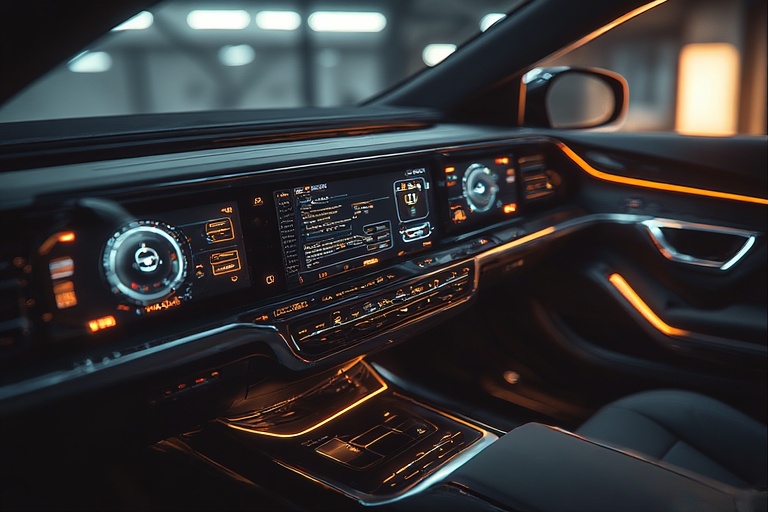
That compromise is usually invisible. But on newer vehicles with wide, high-resolution head units, the cracks begin to show.
Icons appear oversized. Text looks soft. Maps feel unnecessarily zoomed in. Wireless connections drain batteries and heat phones. Stability issues crop up unpredictably. The system still works—but it no longer feels optimized.
What most users don’t realize is that Android Auto already contains the tools to fix many of these problems. Google simply hides them.
Why Android Auto Is Designed to Limit You
To understand why the developer menu exists at all—and why it’s hidden—you have to understand Google’s philosophy toward in-car software. Like Apple with CarPlay, Google treats the vehicle as a controlled environment. Safety regulations, driver distraction laws, and liability concerns all shape how the interface behaves.
In a car, simplicity isn’t just aesthetic. It’s a legal requirement.
Every button, animation, and menu is evaluated against strict standards. Too many choices increase cognitive load. Too much customization introduces risk. As a result, Android Auto is intentionally locked down compared to standard Android.
The Coolwalk redesign pushed Android Auto to its most refined state yet. It looks modern, fluid, and cohesive across different screen sizes. But that polish comes at the cost of user control. Advanced configuration options—especially anything technical—are stripped from the main interface entirely.
This design philosophy works well until something goes wrong.
The Real Problem: Projection Without Authority
At its core, Android Auto is not an operating system. It is a projection layer. Your phone does the computing. The car does the displaying. Somewhere in between, decisions have to be made about resolution, scaling, connection type, and performance.
When those decisions are wrong, the system has no visible way to correct itself.
On ultra-wide or high-resolution screens, Android Auto often defaults to conservative display settings. The result is bloated UI elements and reduced information density. Maps lose detail. Music controls take up more space than necessary. The screen feels underutilized.
Wireless Android Auto introduces another layer of compromise. Maintaining a constant Wi-Fi and Bluetooth connection while rendering graphics and handling navigation places heavy strain on the phone. Battery drain increases. Heat builds up. Performance suffers—sometimes enough to cause disconnects.
Google assumes these trade-offs are acceptable for most users. But for drivers who care about performance, clarity, and control, “acceptable” starts to feel restrictive.
The Hidden Back Door Google Never Advertises
Anyone familiar with Android knows this pattern. When Google locks down the surface, there is often a back door underneath. In Android Auto’s case, that back door is the developer menu.
It isn’t exposed through normal settings. It isn’t documented in consumer guides. There is no button labeled “advanced.” Instead, it’s hidden behind a familiar Android ritual.
Inside the Android Auto app on your phone, buried near the bottom of the settings page, sits a section labeled version and permission information. Tapping it repeatedly—ten times in quick succession—unlocks developer mode.
Suddenly, the system changes.
A new menu appears, accessible through the three-dot overflow icon. Gone is the polished Material Design interface. In its place is a dense, text-heavy list of toggles, flags, and diagnostic tools. It feels unfinished, even hostile.
But this is where Android Auto reveals its true nature.
Inside Android Auto’s Developer Menu
The developer menu looks nothing like consumer software. It looks like infrastructure.
Here, engineers test behavior under different conditions. They log performance data. They adjust display parameters. They troubleshoot problems that never reach the public UI. USB debugging options appear. Screenshot tools exist for documentation. Logging flags expose what the system is doing behind the scenes.
Most importantly, this menu allows the phone—not the car—to assert control.
That shift changes everything.
Fixing Battery Drain and Heat at the Source
One of the most impactful changes available through the developer menu is the ability to disable Wireless Android Auto entirely. With a single toggle, the system can be forced to require a wired USB connection.
The effect is immediate.
Battery drain drops dramatically. Heat buildup decreases. Performance stabilizes. Wired connections deliver consistent bandwidth without the overhead of constant wireless transmission. Navigation becomes smoother. Audio playback is more reliable. Voice commands respond faster.
Wireless Android Auto is convenient, but convenience comes at a cost. For long drives or daily commutes, that cost adds up in thermal stress and battery wear. The developer menu restores the option to prioritize reliability over novelty.
Reclaiming Screen Real Estate Through Resolution Control
Display scaling is another area where Android Auto’s defaults often fall short. High-resolution head units are capable of far more detail than Android Auto typically allows. By default, the system scales the UI conservatively to ensure compatibility across vehicles.
In the developer menu, resolution limits can be adjusted manually.
Allowing higher resolutions sharpens text, reduces icon size, and increases information density. Maps show more context. Split-screen layouts become genuinely useful. The interface finally matches the hardware it’s displayed on.
This single change transforms the experience on wide displays, making Android Auto feel less like a stretched phone screen and more like a purpose-built automotive interface.
Why These Settings Aren’t Meant for Everyone
Google hides these options for a reason. Incorrect configuration can introduce instability. Pushing resolution too high may cause performance issues. Disabling wireless features removes conveniences some users rely on.
But for technically confident users, these risks are manageable. The developer menu doesn’t exist to encourage tinkering—it exists because Google’s engineers need it. The fact that it remains accessible at all is telling.
It suggests that Android Auto is far more flexible than its public interface implies.
Ownership, Control, and the Modern Car
There is a deeper philosophical issue at play here. Drivers pay for their phones. They pay for their cars. Yet the software bridging the two often treats them like guests rather than owners.
Manufacturers lock down head units. Platform providers enforce rigid rules. The user is left with limited agency over how their own hardware behaves.
The Android Auto developer menu quietly challenges that model. It restores a measure of control without breaking the system entirely. Once you know it exists, the relationship changes. You no longer feel trapped by updates or regressions. You know there is a way to diagnose, adjust, and recover.
Why This Matters for the Future of In-Car Software
Cars are becoming software platforms. As vehicles integrate more deeply with digital ecosystems, control and transparency will become increasingly important.
Hidden developer menus shouldn’t be necessary. Advanced settings shouldn’t feel forbidden. But until automotive software matures, these back doors serve an essential role for power users.
Android Auto’s secret menu is not about customization for customization’s sake. It’s about resilience. It’s about ensuring that when tightly controlled systems fail—as they inevitably do—users are not left powerless.
FAQs
1. What is Android Auto’s developer menu?
It is a hidden settings panel used by engineers to test, debug, and configure Android Auto.
2. How do you access Android Auto developer mode?
By tapping “Version and permission info” repeatedly inside the Android Auto app settings.
3. Is it safe to use Android Auto developer options?
Yes, if used carefully, but incorrect settings can cause instability.
4. Can it fix battery drain issues?
Yes, disabling wireless Android Auto significantly reduces battery and heat problems.
5. Does it improve screen quality?
Yes, higher resolution settings sharpen visuals and improve information density.
6. Why does Google hide this menu?
To reduce risk, comply with safety regulations, and simplify the user experience.
7. Will this void my car warranty?
No, changes apply only to the phone-side software.
8. Does every Android phone support this menu?
Most modern Android phones with Android Auto do.
9. Can updates remove developer mode?
Google could restrict it in the future, but it currently remains accessible.
10. Is this intended for everyday drivers?
It’s intended for advanced users comfortable with technical settings.